

You can create a signature for your email messages using a readily available signature gallery template. All you have to do is get the template, copy the signature you like into your email message and personalize it to make your own Outlook signature. Check out the video to see how it's done.
Start with a template
- In Word, select File > New. Then, in the templates search box, type
Email signatureand then press Enter. - In the list of results, select the signature you like, and then select Create to open it in Word. (If it opens in Protected View, select Enable editing.)
- In the signature, edit elements as appropriate.
- Select all the elements in it, then then on the Home tab, select Copy.
Add your signature to Outlook
Open Outlook and select New Email.
Paste the copied signature in the email message body. Then personalize the signature—changing the words, changing the photo or logo, and adding hyperlinks to your website or social profile.
After you have personalized your signature, you need to save your signature to keep using it in all your outgoing email.
Select all the elements of the signature, right-click and choose Copy.
On the Message tab, in the Include group, select Signature > Signatures.
Choose New and type a name for your signature. For example: "Business" or "Personal".
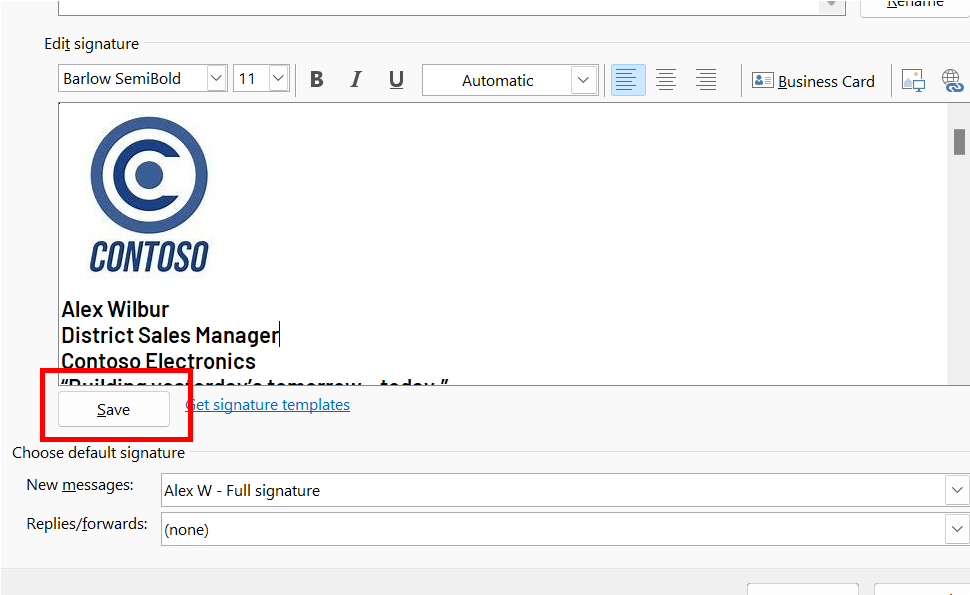
In the Edit signature field, right-click and select Paste. Your signature is now displayed in the field.
Just below the edit signature field select Save.
Tip
You can have Outlook add this signature automatically on any new messages and/or replies by selecting it in the Choose default signature section.
To add a signature to an email manually, while editing your email message, select Signature from the Message menu and pick the signature you want.
Choose OK.
See how it's done
You can also personalize your signature by editing the text, changing the photo/logo, and adding hyperlinks to your website or social profile.
Change the photo/logo
- Right-click the photo in the signature and select Change Picture, then select where you want to get your picture from.
- Navigate to the picture you want, then select it.
- Select Insert.
- To resize the image, select the image to see drag handles appear around the image. Move the drag handles to resize the image as necessary. Select the Picture Format tab on the ribbon, then use the options on it to format your image. For example, you can apply a style or a border to the image.
Add hyperlinks to your website/social
- In the signature, right-click on any social icon or hyperlink, then select Edit Link or Edit Hyperlink.
- Update the Address box to specify the destination you want to link to. If necessary, also update the Text to display.
- Select OK.
See also
Insert hyperlinks to Facebook and X (formerly Twitter) in your email signature