
Note
This feature is not available in legacy Outlook for Mac.
You can use My Day to view your upcoming calendar events anywhere in Outlook, including Mail, Calendar, and People.
Open My Day
Show or hide the My Day pane by selecting the Show Task Pane or select View > Task Pane.
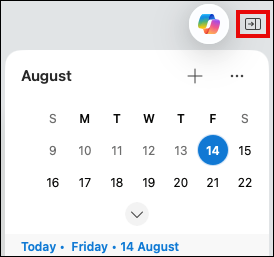
Create and view upcoming events
In My Day, you can create new events and view existing events by selecting a day in the calendar. You can also choose an individual event to get more details.
- To create a new event, select the Create new event + button.
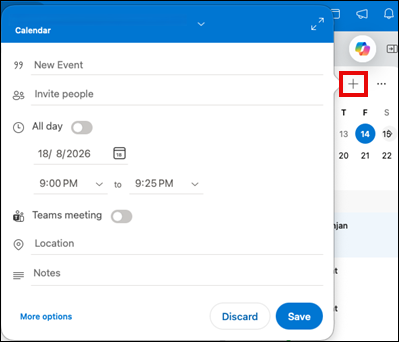
- Select Switch my day views … to switch between agenda view and day view or to view Settings. In Settings you can select which calendars you want displayed, and if you want to view past events.
Access My Day from anywhere
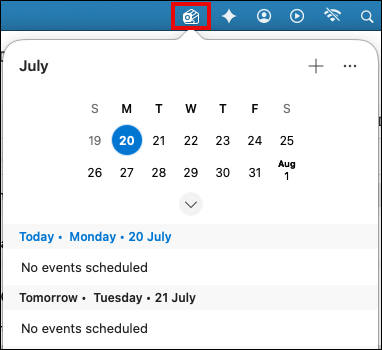
- To enable the option, go to Outlook > Settings > My Day.
- Select the drop-down menu next to Show My Day in menu bar and select the option you want.
- Select the My Day button in the main menu bar on your Mac to get a snapshot of your events.