

You can tell PowerPoint to play music or other audio automatically when a certain slide appears during a slide show.
There are different ways to play it automatically when you get to that slide in your presentation:
- To start the audio immediately when the slide appears during the presentation, use the options on the Playback tab.
- To start the audio after a delayed interval of time that you set, use Animation options.
Start the audio in the click sequence or immediately
In Normal view (where you edit your slides), click the audio icon on the slide.
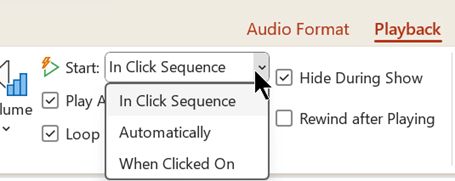
On the Playback tab, in the Audio Options group, select In Click Sequence or Automatically in the Start list.
To test the sound, on the Slide Show tab, click From Beginning.
Note
To hear music or sounds, your computer must be equipped with a sound card and speakers.
Start the audio after a delay
In Normal view (where you edit your slides), click the audio icon on the slide.
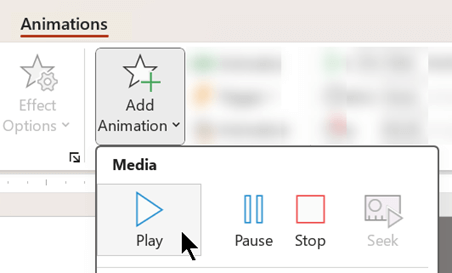
On the Animations tab, click Add Animation.
Under Media, select Play.
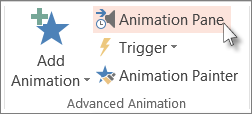
On the Animations tab, click Animation Pane.
In the Animation Pane, make sure your audio clip is in first position at the top of the pane.
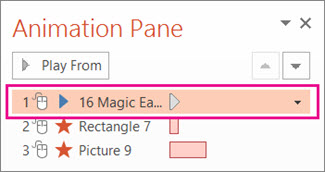
Click the down arrow to the right of the sound clip, and then click Effect Options.
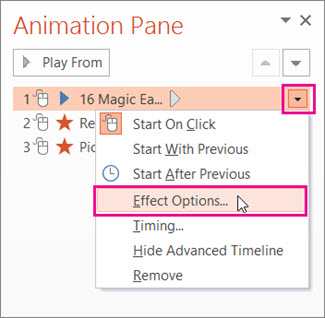
On the Effect tab under Start Playing, select From beginning.
Under Stop Playing, select After current slide.
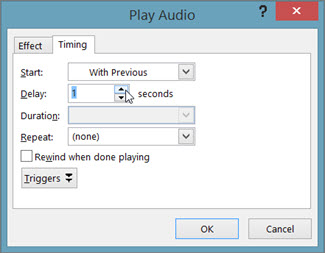
On the Timing tab, in the Start list, select With Previous.
To begin playing the sound after a brief delay, in the Delay box, press the up arrow to increase the delay in seconds, and then click OK.
To test the sound, on the Slide Show tab, click From Beginning.
Note
To hear music or sounds, your computer must be equipped with a sound card and speakers.