

You can use a button (a form control) to run a macro that performs an action when a user clicks it. For example, you might use a button to automate the printing of a worksheet, the filtering of data, or the calculation of numbers.
After you automate tasks with the Macro Recorder, you can assign it to a button you click to run the macro in Excel. You can assign a macro to a button on the Quick Access Toolbar or to a button in your own personal group on the ribbon.
If you want a macro button to be available in other workbooks, assign it to a macro that you created in a personal workbook.
Add a macro button to the Quick Access Toolbar
Select File > Options > Quick Access Toolbar.
In the Choose commands from list, select Macros.

Select the macro you want to assign a button to.
Select Add to move the macro to the list of buttons on the Quick Access Toolbar.
Select Modify to replace the default macro icon with a different button for your macro.
Under Symbol, select a button icon for your macro.
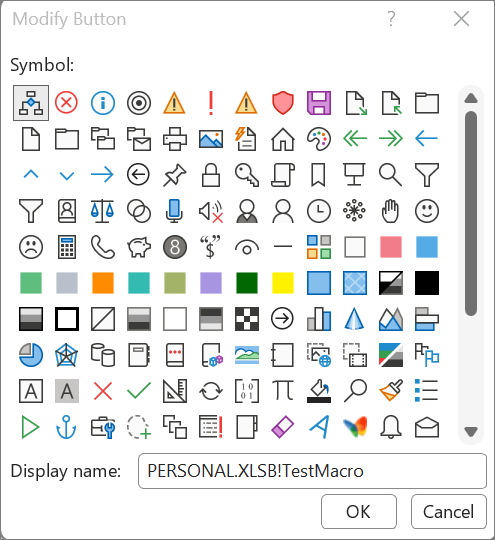
To use a friendlier name for the button, enter the name you want in the Display name box.
You can enter a space in the button name.Select OK twice.
The new button appears on the Quick Access Toolbar, where you can select it to run the macro.
Tip
When you save your workbook, buttons you assign to macros in the personal workbook are available in every workbook you open.
Add a macro button to your own group on the ribbon
Select File > Options > Customize Ribbon.
Under Customize the Ribbon, in the Main Tabs list, check the Developer box if it's not already checked.
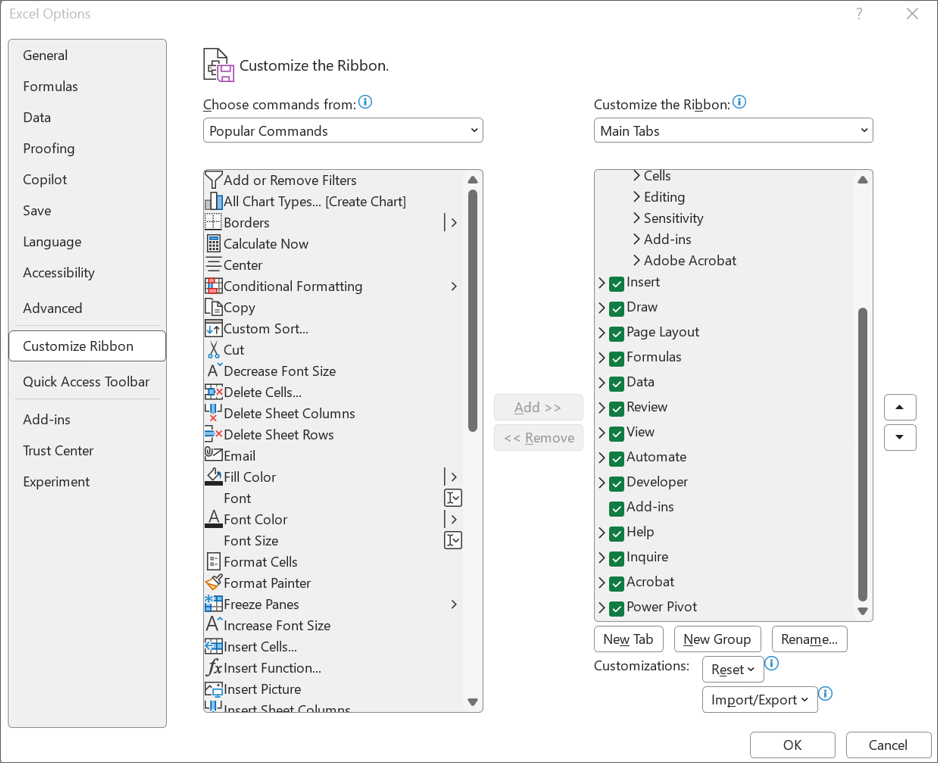
Choose the tab where you want to add your own group.
For example, choose Home, to add your group to the Home tab.Select New Group.
That action adds New Group (Custom) to the tab you chose.To use a better name for your new group, select Rename, enter the name you want in the Display name box, and then select OK.
You can enter a space in the name. For example, type My Macros.To add a macro to the group, in the Choose commands from list, select Macros.
Select the macro you want to add to your new group, and then select Add. The macro is added to the My Macros group.
To use a friendlier name, select Rename, and then type the name you want in the Display name box.
You can enter a space in the name.Under Symbol, select a button icon for your macro.
Select OK twice.
Your new group appears on the tab you chose, where you can select the button to run the macro.
Tip
When you save the workbook, buttons you assign to macros in the personal workbook are available in every workbook you open.