

Open any Office application, such as Word or Excel, and select Account.
Note
If the Account option isn't available or you already have a file or document open, select File, and then select either Account or Help from the list.
Under Product Information, you'll find your Office product name and, in some cases, the full version number.
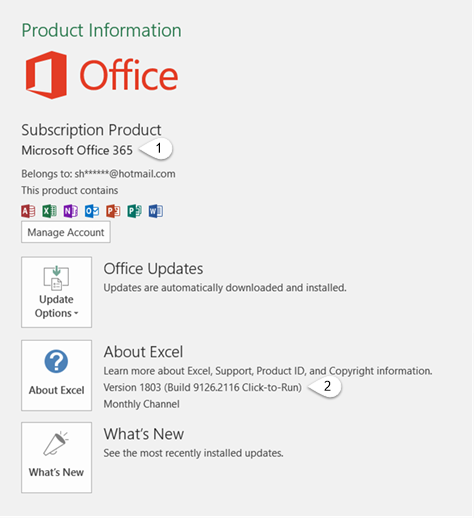
- 1 - Product name, such as Microsoft 365 ProPlus or Office Home and Student.
- 2 - Version number, which includes version, build number, and the type of installation such as Click-to-run or Windows Store.
For more information, such as the bit-version, choose About Excel. A dialog box opens, showing the full version number and bit version (32-bit or 64-bit).
Related articles
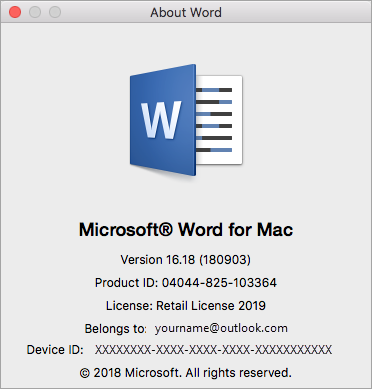
Still not sure?
If the steps above didn't work for you, you're likely using an older version of Office. To learn what version you have, go to Find details for other versions of Office.