

Modify your Teams settings directly in the desktop or mobile app. Update your region, language, time and date, and decide if you want Teams to sync automatically with your operating system. Change your profile picture, set your status, or try out different light themes to make your account more personal. You can also switch up your call ringtone, set up an Out of Office schedule, and much more.
Open Teams in-app settings
- In Microsoft Teams, select Settings and more
 next to your profile picture.
 - Select Settings
 .
.
Tip
Quickly find what you need by entering category, title, or description keywords in the settings search box.
Change Teams settings
By default, Teams reflects the same date and time format as your device's language, date, and time settings. For example, if your device's display language is set to English (United States), the date and time in Teams will display the regional format used in the United States.
Change the default settings by following the steps below:
Change your language and regional formats in Teams
When you update your language and regional settings in your operating system, you have the option to have Teams reflect those changes.
To turn Follow OS settings on or off:
- In Teams, go to Settings and more
> Settings
> General.
- Under Language and regional formats, use the toggle next to Follow OS settings to turn this setting on or off. Turn it off to manually set your App language, Date format, and Time format.
- When you're done making changes, select Save and restart, or Restart. If you don't see either of these buttons, manually restart Teams.
Note
If you change both date and time formats and language and region settings, you must restart Teams for the changes to take effect.
Change your language settings in Windows
In Teams, go to Settings and more
> Settings
> General.In the Language and regional formats section, select Manage Windows settings (or Manage for Teams for the web).
Under Language & region > Windows display language, choose the language you want to use from the dropdown menu.
Note
To install a new language to use, select Add a language, choose the language you want to install, and select Next > Install.
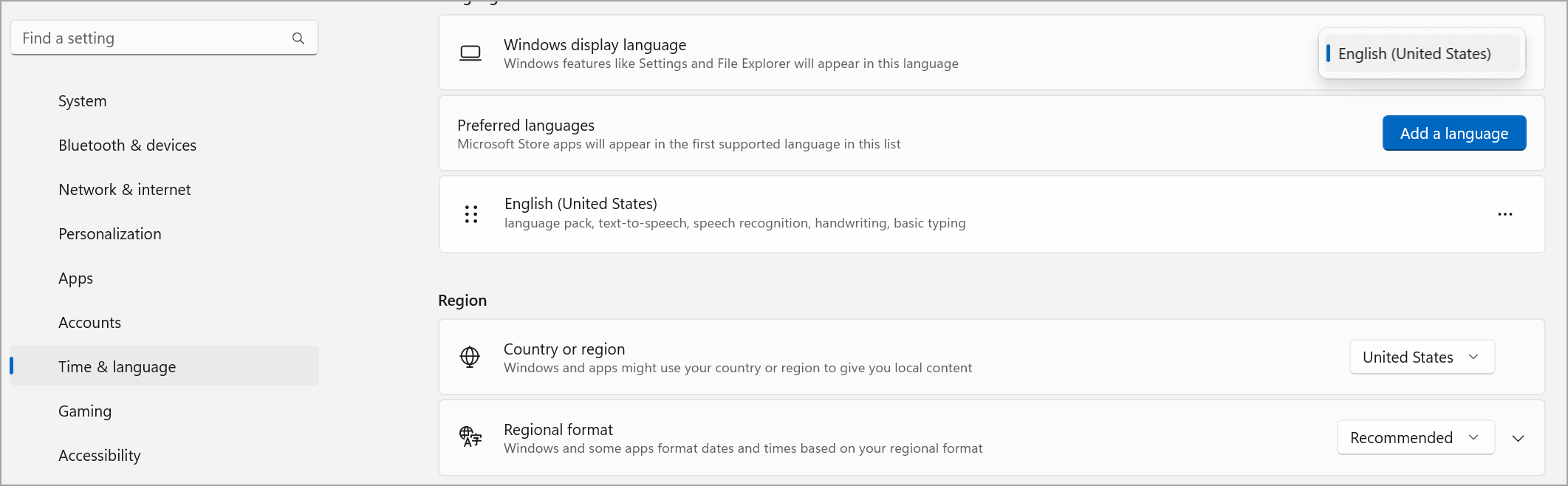
For more language settings, select More options
 > Language options next to your language.
Restart Teams to apply any language settings changes.
Change your region in Windows
In Teams, go to Settings and more
> Settings
> General.In the Language and regional formats section, select Manage Windows settings (or Manage for Teams for the web). This opens Windows settings.
Under Region, select your region from the Country or region dropdown menu.
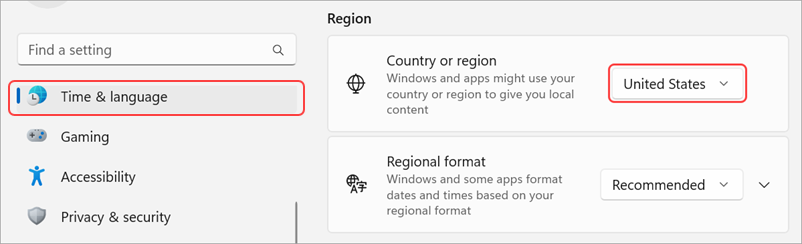
Keep your Regional format set to Recommended to sync your regional date and time with other apps, or choose another setting from the dropdown menu.
Restart Teams to apply any regional format changes.
Change your region on MacOS
Open System Settings on your MacOS device.
Select General > Language & Region.
Select the Region dropdown menu and choose your region.

Confirm your regional change.
Restart Teams to apply any regional format changes.
Change your time zone
When you change your time zone in your device's settings, Teams will reflect those changes automatically, unless you've turned off Follow OS settings under Language and regional formats. You can also enable location permissions to update your time zone automatically.
Change your time zone in Windows
- In Teams, go to Settings and more
> Settings
> General.
- In the Time zone section, select Manage Windows settings.
- Next to Time zone, choose your time zone from the dropdown menu.
Change your time zone in MacOS
Open System Settings on your MacOS device.
Select General > Date & Time.
If the Set time zone automatically toggle is on, your time zone will update to reflect the time zone where you're currently located.
To manually change your time zone, turn off the Set time zone automatically toggle. Then, select your Closest city from the dropdown menu to change to that city's time zone.
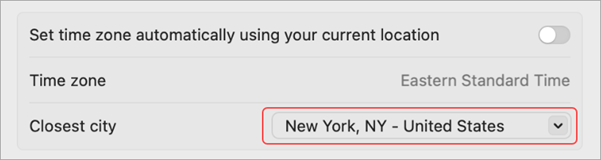
Changing your preferred language and region in Teams also updates your time and date format.
Customize how apps appear
Customize apps in Teams by choosing whether to display labels beneath app icons and if you want to automatically collapse the app bar when you are using Teams.
To show or hide app labels:
- Select Settings and more
> Settings
in Teams.
- Select Appearance
 .
. - Turn the Show app names toggle on or off.
To collapse or show apps:
- Select Settings and more
> Settings
in Teams.
- Select Appearance
.
- Turn the Auto collapse app bar toggle on or off to automatically collapse the app bar after you select an app.
Tip
To easily access Appearance settings, Select Expand app bar or press Ctrl+\\, or right click on the app bar and select Customize app bar.
Set Teams to start automatically
Teams is set to automatically open and run in the background as soon as you start your device. If you close the app, it keeps running in the background. You can change these settings anytime.
- Select your profile picture at the top right of Teams
- Select Settings and more
> Settings
> General.
- From the System section, uncheck the box next to Auto-start Teams. You can also change your settings so the app won't run in the background or keep running after you close your window.
Turn efficiency mode on or off
The efficiency mode setting in Microsoft Teams is designed to improve performance and reduce resource usage, especially on devices that are under hardware stress or have limited capabilities.
Note that turning this setting on may affect some functionality such as camera resolution.
In Teams, go to Settings and more
> Settings
> General.Scroll down to Efficiency mode.
Choose your preferred setting:
- Use only when resources are low (Default): Reduce processor and memory usage when reduced resources are detected.
- Never use efficiency mode: Prioritize a richer experience, using more system resources.
- Always use efficiency mode: Reduce processor and memory use at all times.